
Active installs
2K+
Subscription includes
Support
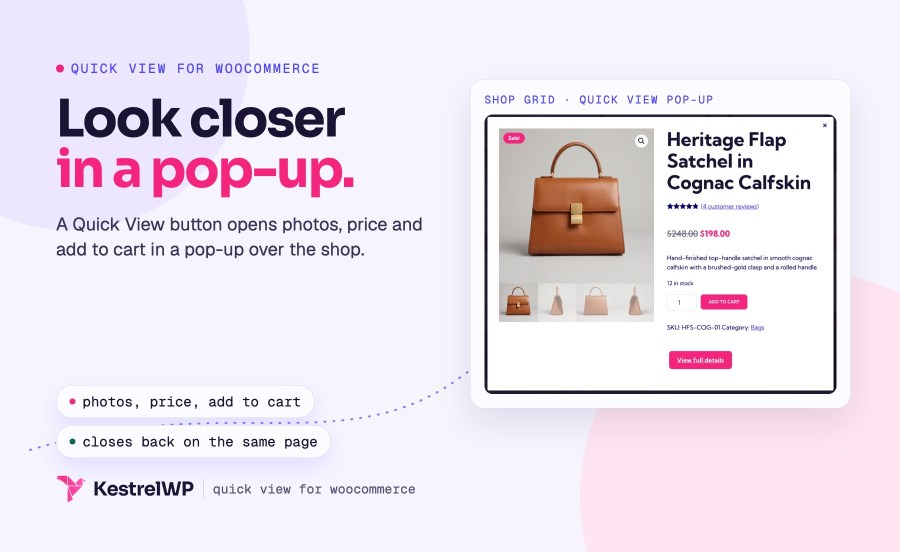
Quick View for WooCommerce lets shoppers check a product without opening its page. It adds a Quick View button to the products in your shop, and one click opens a pop-up over the page with the photos, price, short description and add to cart form, variation choices included. Closing it drops the shopper back right where they were. Built by Kestrel, a long-time WooCommerce extension developer.
The plugin is deliberately small: one setting, no styling panel (you restyle with CSS, a template override or a hook) and no quick view on single product pages. It declares support for High-Performance Order Storage.
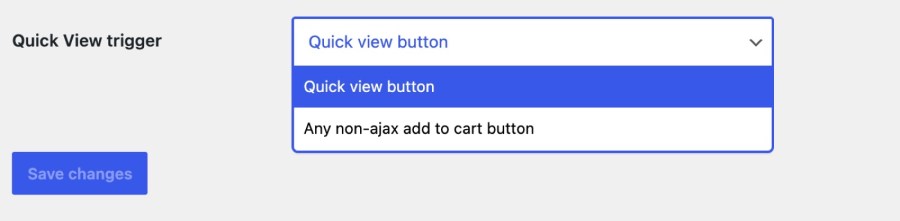
A Quick View button appears before each product’s add to cart button on your shop, category and tag pages on themes that use WooCommerce’s standard product loop. It also appears in other lists that use WooCommerce’s standard product loop, such as related products on classic themes, and in WooCommerce’s older product grid blocks (Products by Category, Hand-picked Products and similar). Shoppers can check any product in the list with one click, then close the pop-up and carry on browsing from the same spot, instead of opening a product page and backing out again.
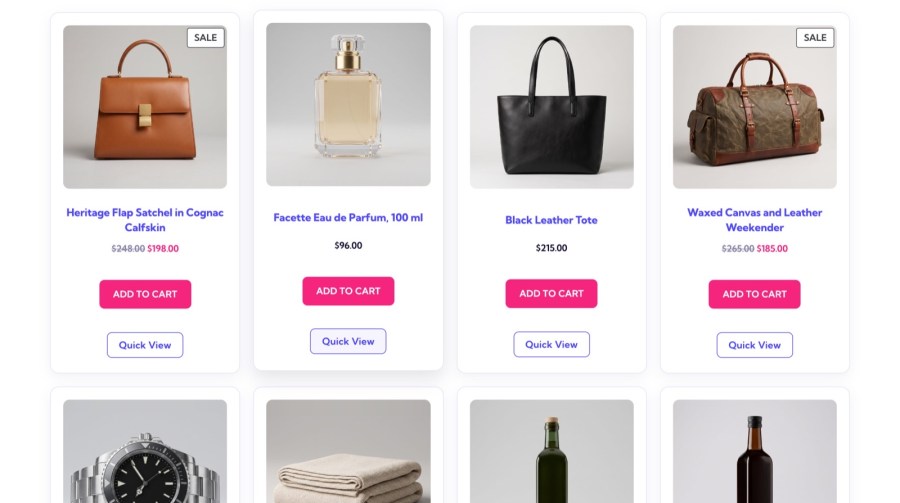
If you would rather not add another button, change the Quick view trigger to Any non-ajax add to cart button. The buttons that would send shoppers to another page, such as Select options, View products, Read more and the buttons on external products, open the pop-up instead, and nothing extra is added to the product list. WooCommerce’s AJAX add to cart is on by default, so most stores keep the default Quick view button option. If you turn AJAX add to cart off in WooCommerce, every list button counts as non-AJAX. This option works with WooCommerce’s classic product buttons and older grid blocks: on a block theme’s shop built with the Product Collection block, those buttons still go to the product page, so keep the default Quick View button there.
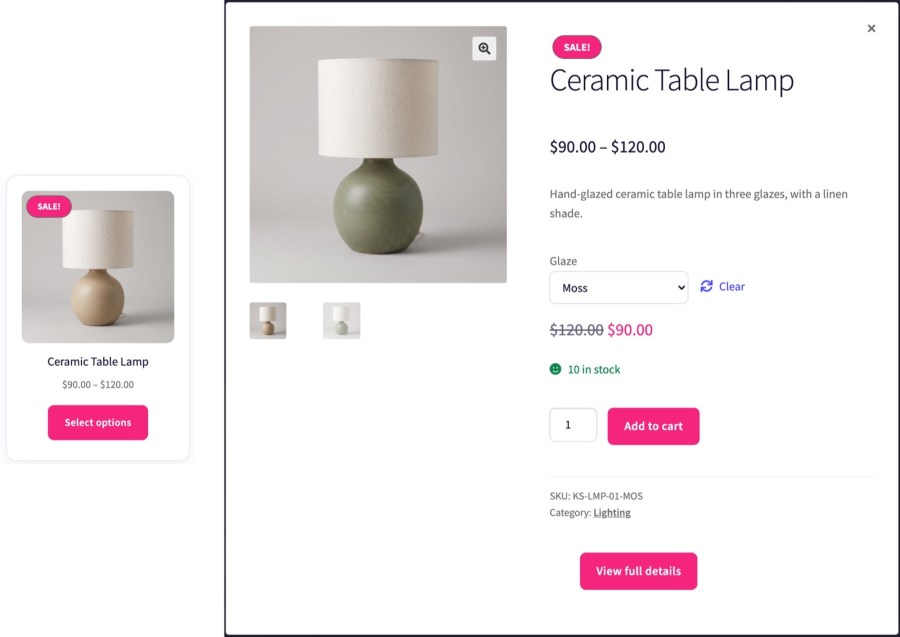
The pop-up loads the same data as the product page: title, images, sale badge, rating, price, short description, SKU, categories and tags, plus a View full details button for shoppers who want more. Variable products show their variation choices, and the image changes when a shopper picks one. Image zoom, the slider and the lightbox appear where your theme supports WooCommerce’s gallery features. Anything else hooked into the single product summary shows too, so most product page customizations carry over, and Currency Converter Widget converts the prices inside the pop-up.
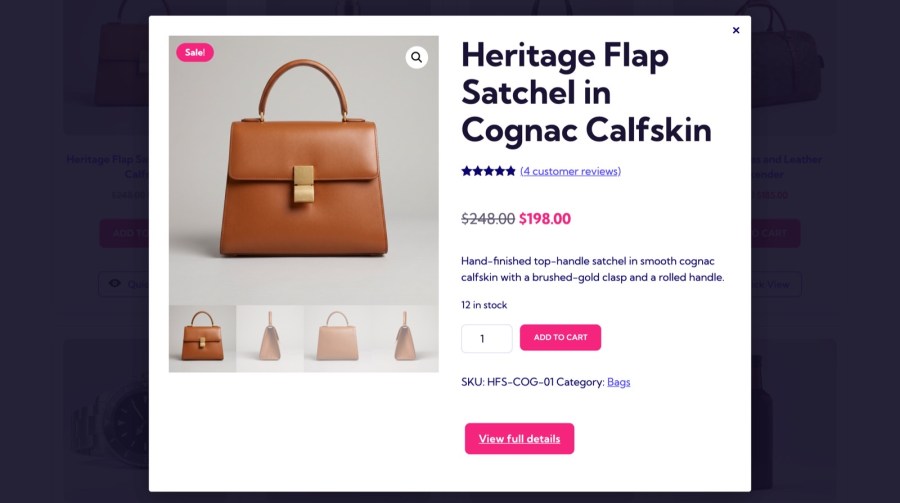
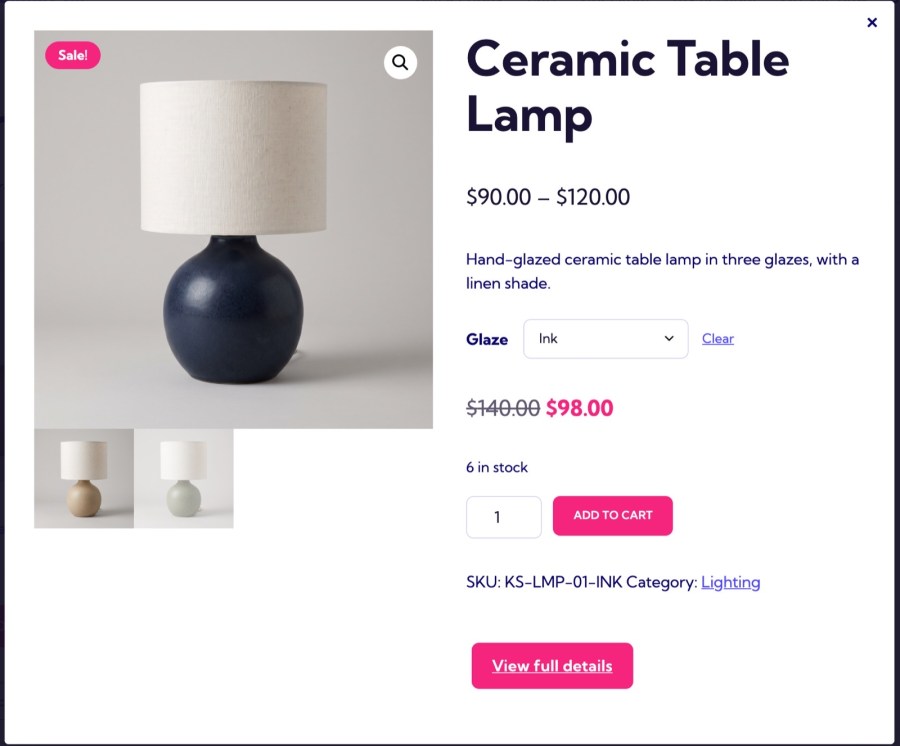
Shoppers add the product to the cart without opening its page. The pop-up uses WooCommerce’s standard add to cart form, so it submits to the current page, which reloads with WooCommerce’s added to cart message, or goes to the cart if you have turned on redirect after add to cart. The pop-up closes with the close button, a click outside it or the Escape key, and keyboard focus returns to the button that opened it, so shoppers who use a keyboard don’t lose their place.
Quick View has no styling panel, so the button and pop-up pick up your theme’s look and you change them the way you’d change any theme element. Style them with CSS, or copy loop/quick-view-button.php (the button) or quick-view.php (the pop-up) into your-theme/woocommerce-quick-view/ to change the markup. The pop-up template runs the product page’s own hooks, so most product page customizations run inside it as well. Developers get three actions (wc_quick_view_enqueue_scripts, wc_quick_view_before_single_product and wc_quick_view_after_single_product) and three filters (quick_view_selector, woocommerce_loop_quick_view_button and woocommerce_loop_quick_view_link_args).
Pair it with Products Compare. Quick View handles the closer look at one product. Products Compare for WooCommerce handles the choice between several: shoppers tick the products they’re weighing and open one comparison page. The two do different jobs and each works on its own, so add Products Compare when your catalog has products that shoppers weigh against each other.
Show converted prices in the pop-up. If you sell in more than one currency, Currency Converter Widget converts the prices inside the Quick View pop-up as well as the ones on the page behind it. The pop-up triggers the widget’s recalculation each time it opens, so shoppers see the currency they picked in the pop-up too. Currency Converter Widget does the converting; Quick View tells it when the pop-up has loaded.
Pair it with Product Finder. Shoppers who search a big catalog with Product Finder land on a normal shop results page, built on WooCommerce’s standard product loop, so a Quick View button on the matches lets them check a product without leaving the results. Product Finder finds the right products; Quick View gives them a closer look. Each works on its own.
Setup steps, where the button appears and common issues are in the Get started with Quick View guide. If the button doesn’t show on your theme, contact Kestrel support.
Built and supported by Kestrel, a long-time WooCommerce extension developer.

Install and activate Quick View for WooCommerce. The button appears on your shop, category and tag pages before each product's add to cart button. The only setting, under WooCommerce » Settings » Products » Quick View, chooses between that button and reusing your Select options and Read more buttons.
Yes. Shoppers choose variation options inside the pop-up, and the product image changes to the variation's image when one is selected. They can add the chosen variation to the cart from the pop-up, or open the full product page with View full details.
No. Quick View adds its button to product lists only: shop, category and tag pages, related products and WooCommerce's older product grid blocks. It doesn't appear on the main product of a single product page, and it isn't added to Product Collection blocks placed on other pages.
There are no color, size or layout settings. Change the look with your theme's CSS, by copying quick-view.php or loop/quick-view-button.php into your-theme/woocommerce-quick-view/, or with the plugin's hooks. Most product page customizations also run inside the pop-up.
The button is added through WooCommerce's standard product loop hooks, so a theme or page builder that renders products without them shows no button. A product that has already shown a button higher on the same page doesn't get a second one further down.
No. The pop-up's form submits to the current page, which reloads with WooCommerce's added to cart message, or goes to the cart if redirect after add to cart is on. Quick View doesn't use AJAX add to cart inside the pop-up.
Categories
Extension information
Quality Checks
Countries
Requirements