
Active installs
900+
Product comparison
Subscription includes
Support
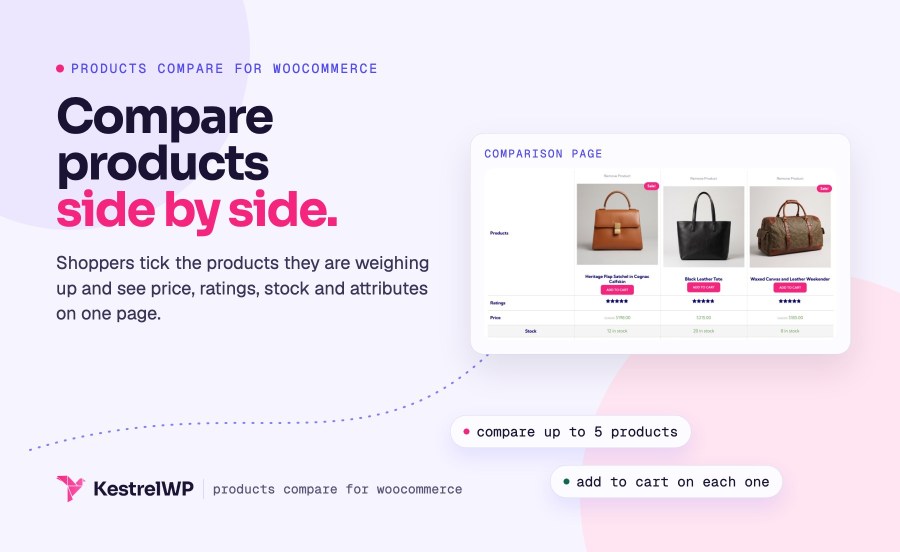
Products Compare for WooCommerce is a WooCommerce product comparison plugin that lets shoppers compare products side by side, so they don’t have to remember the details of each one. It adds a Compare tick to your products. Shoppers tick the ones they’re weighing up, open the comparison page and see image, price, ratings, stock, SKU and product attributes lined up side by side, with add to cart on each. There is nothing to configure: activate it and the ticks appear. Built by Kestrel, a long-time WooCommerce extension developer.
The shopper’s list lives in their browser, so it works for guests and on sites with full-page caching. The plugin runs on classic and block themes and declares support for the Cart and Checkout blocks and High-Performance Order Storage.
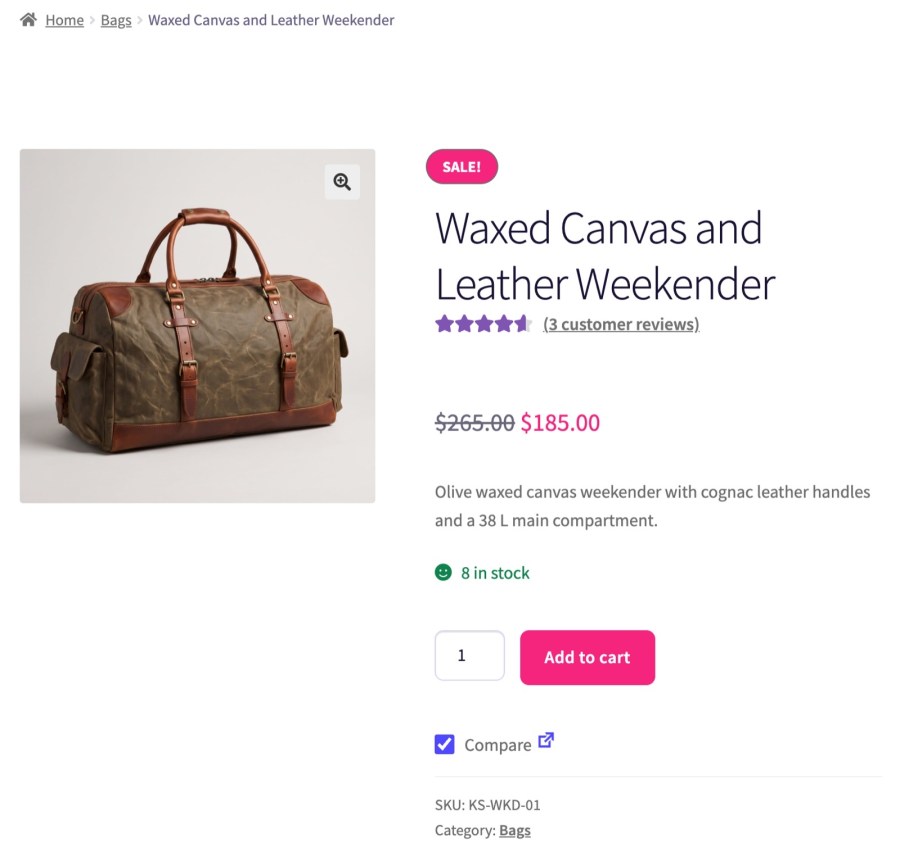
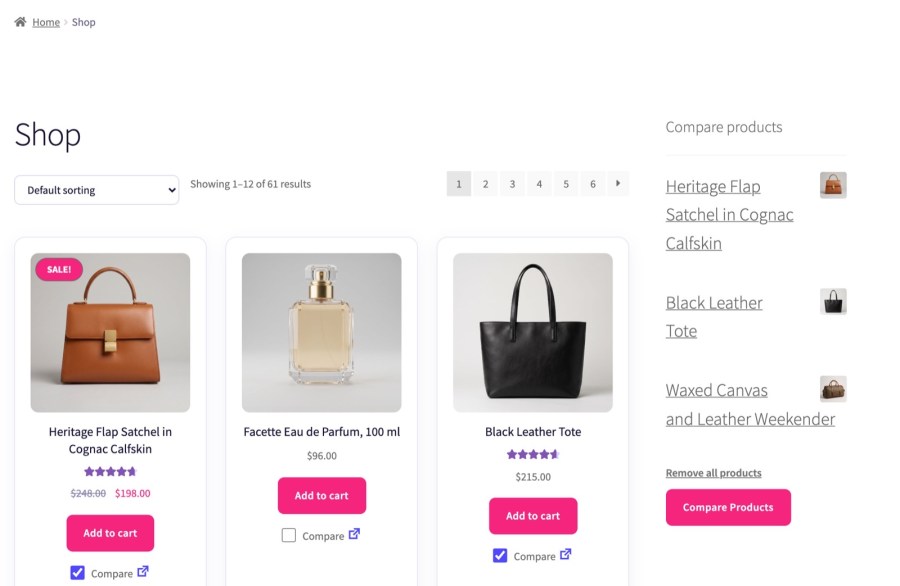
A Compare tick and a link to the comparison page appear after the add to cart button in your product lists, and on single product pages. On block themes the tick is added after every Add to Cart Button block, which includes Product Collection blocks on other pages. On a single product page the tick’s position depends on your theme: it sits below the add to cart form on a classic theme such as Storefront. Ticking a product adds it to the shopper’s list, so they can build a shortlist while they browse and open the comparison page when they’re ready, without leaving their place in the catalog first.
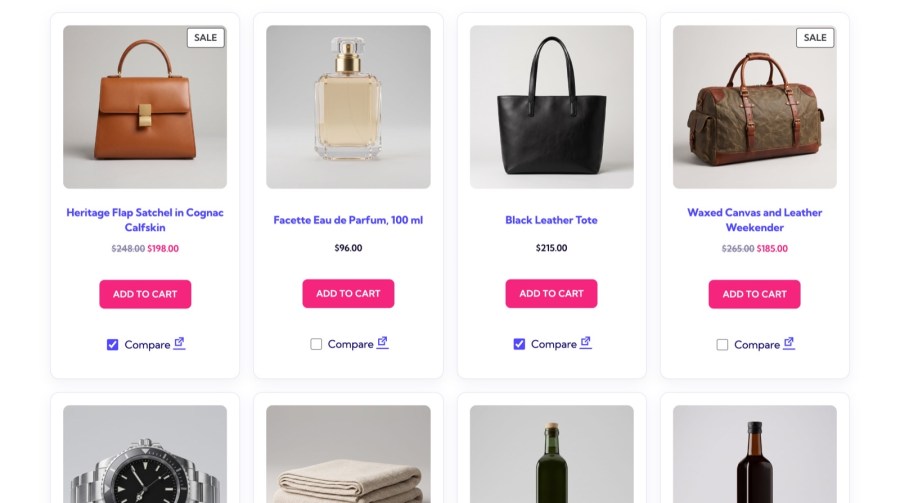
Shoppers can compare up to 5 products at a time, and a sixth shows a “maximum of 5” alert, so the table stays to a handful of products that line up well. The comparison page opens once at least 2 products are ticked. Each product on the page has a Remove Product link, so shoppers can drop one and keep going while they narrow the list down. Developers can change the limit with the woocommerce_products_compare_max_products filter, and only published products that aren’t hidden from the catalog can be compared.
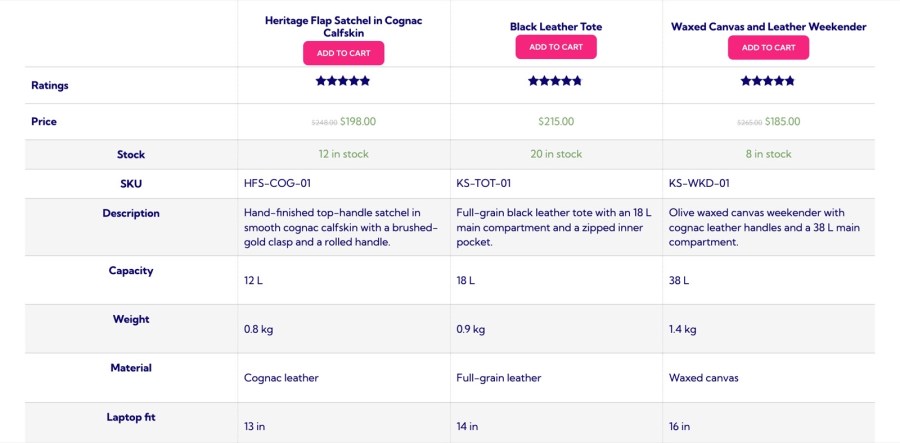
The comparison page lists each product’s image, title, sale flash, add to cart button and price. Below that come rows for Ratings (when a compared product has reviews), Description (the short description), SKU, Stock (for products that manage stock) and every attribute visible on the product page, such as capacity, weight or material. A product without a value shows a blank cell. Shoppers add to cart straight from the table, so the moment they’ve decided is also the moment they can buy.
Compared products are kept in the shopper’s browser rather than on your server, which is why comparing works for guests and on sites that serve cached pages. A page cache can’t hand one shopper another’s ticks, because the list is read in the browser. The list is remembered for 7 days, and a filter changes that. It isn’t tied to an account or shared across devices, and clearing browser data removes it, so treat it as a shortlist rather than a saved wishlist.
The Products Compare for WooCommerce widget goes in any widget area and shows what the shopper has ticked so far. It lists each selected product with a remove link, adds a “Remove all products” link and ends with a Compare Products button that opens the comparison page. You set the widget’s title and the default text it shows while nothing is selected, so the sidebar can nudge shoppers to start a comparison instead of sitting empty, and the whole list stays in view while they keep browsing. The widget needs a widget area, which classic themes provide and most block themes don’t.
On block themes running WordPress 6.7 or later, the comparison page comes with your theme’s header and footer and a Products compare table block you can edit in the Site Editor; on older WordPress versions, block themes keep the classic page. There’s no styling panel, so style the table with your theme’s CSS, or copy products-compare-page-html.php and content-widget-products-compare.php into your theme to override the markup. Developers also get filters for the page slug, the page title, the Compare button HTML, the selected products and which rows show, so the page can match how your catalog is organized.
Pair it with Quick View. Products Compare and Quick View for WooCommerce do different jobs, so they pair as two ways to decide. Quick View opens one product in a pop-up from the shop grid, for a closer look at photos, price and variations. Products Compare puts several products side by side on one page. Each works on its own; run both when shoppers need to check one product closely and also weigh several against each other.
Pair it with Product Badges. Product Badges for WooCommerce puts sale, low stock and seasonal badges on product images, so shoppers see what’s on offer before they tick products to compare. Badges label products in the list; Products Compare lines them up. Each works on its own, and neither needs the other, so you can add Product Badges at any time.
Behavior, the widget and common issues are covered in the Get started with Products Compare guide. If you get stuck, contact Kestrel support.
Built and supported by Kestrel, a long-time WooCommerce extension developer.

Activate Products Compare for WooCommerce. A Compare tick appears on your products, shoppers tick the ones they're weighing up, and the comparison page opens once at least two are ticked. There is no settings screen to configure, so the ticks work as soon as the plugin is active.
Yes, up to 5 at a time by default. A sixth tick shows a "maximum of 5" alert, and the woocommerce_products_compare_max_products filter changes the limit. The comparison page opens as soon as at least 2 products are ticked, and shoppers can remove any product from the table.
Each product's image, title, sale flash, add to cart button and price, then ratings (if any compared product has reviews), the short description, SKU, stock (for products that manage stock) and the attributes visible on the product page. A product without a value for a row shows a blank cell.
No. A variable product is compared as one product, not variation by variation. Only whole products are compared, and only published products that aren't hidden from the catalog can be added, so a variation can't be ticked on its own.
Yes. The list is kept in the shopper's browser for 7 days, so it survives closing the tab and works for guests. The comparison page address also lists the compared products, so it can be bookmarked or sent as a link. The list isn't tied to an account or shared across devices, and clearing browser data removes it.
Yes. On WordPress 6.7 or later, block themes show their header and footer on the comparison page, and the list is read in the browser, so page caches don't serve one shopper another's ticks. If your theme or builder skips the standard product hooks, or a block theme lacks the Add to Cart Button block, no Compare tick shows.
Categories
Extension information
Quality Checks
Countries